Sunday
How To Reduce The Size Of An Image
To reduce the size of images I have tried some software. and the results less satisfactory, finally my friend recommended to me to use Paint.NET. For now this software is my main options to help reduce the size of images.
Paint.NET is freeware so you do not need to pay to get this software. If you want download this software you can visit here download Paint.NET
Microsoft Paint Windows VS Paint.NET

As an example I will try to reduce the size of an image using Microsoft Paint Windows and Paint.NET

1. Reduce the Size of Image Using Microsoft Paint Windows
- I try to open the image on Microsoft Paint Windows and resave it, and the result is image size increase to 1.3 MB.
- I try to resize the image on Microsoft Paint Windows to 600 x 450 pixels and the result is image size decrease to 153 KB.
- I try to open the image on Paint.NET and resave it with the quality setting is 90, and the result is image size decrease to 1 MB.
- I try to resize the image on Paint.NET to 600 x 450 pixels with the Resampling setting is Best Quality, and the result is image size decrease to 62 KB.
6:24 PM 0
Get a Free DVD Ripper (Mac) and Video Converter Software (Windows) Giveaway
MacXDVD Software is offering a giveaway on the latest version of DVD ripper and video converter software free for everyone. MacX iPhone DVD Ripper for Mac users, and MacX HD Video Converter Pro for Windows users.
MacX iPhone DVD Ripper is a top Mac DVD ripping software which mainly designed for iPhone 5/ iPhone 4S/iPhone 4/ iPhone 3GS. It performs perfectly and fast speed in ripping DVD to iPhone, converting DVD to iPad as well as transferring DVD to iPod on Mac effortlessly. Furthermore, this DVD ripper software can also help users rip DVD to H.264, rip DVD to MPEG4, DVD to MOV and MP3 music without quality sacrifice.

Read more about MacX iPhone DVD Ripper here.
The price for MacX iPhone DVD Ripper is $39.95, but now you can get your copy absolutely free.
If you are a Windows user and want to transform both HD and SD video formats M2TS, AVCHD, FLV, AVI, MKV, WebM, MP4, Google TV at blazingly-fast converting speeds to be compatible with a wide range of portable media devices, including iPhone, iPad, iPod and much more. Then you can do this with the help of this wonderful video converter software.

Read more about MacX HD Video Converter Pro here.
The price for MacX HD Video Converter Pro is $39.95, but now you can get your copy absolutely free.
This giveaway is valid before Oct 8. To grab a free copy of MacX iPhone DVD Ripper for Mac OS X or MacX HD Video Converter Pro for Windows, just download the programs from the giveaway page and enter the license key from pop-up window. Once you entered the license key, it will unlock the software without any limitation.
Tags: Convertor, Featured, Giveaway, iPhone, iPhone 5, SoftwareCategory: Mac, Software2:48 AM 1
Wednesday
Auslogics BoostSpeed 5 Giveaway ! Download NOW !!!

Auslogics BoostSpeed 5 Giveaway – Review


Auslogics BoostSpeed 5 Giveaway – New Features
- System Scan.
- File Recovery.
- Disk Doctor.
- Disk Explorer.
- Disk Defrag.
- Registry Defrag.
- Disk Cleaner.
- Registry Cleaner.
- Internet Optimizer.
- Tweak Manager.
- Track Eraser.
- Duplicate File Finder.
- File Shredder.
- Disk Wiper.
- Startup Manager.
- Uninstall Manager.
- Service Manager.
- Task Manager.
- System Information.
- Rescue Center.

Open the registration page here and and complete the form on that page to receive your serial number to activate your full version of Auslogics BoostSpeed 5 SE.
7:56 PM 10
Some Security Tips To Protect Your Computer From Viruses !

How to Protect Your Computer From Viruses
With millions of computer users browsing the web at any given time, there are plenty of targets for malicious coders. While computer experts don’t always know why coders choose to build harmful computer programs, the fact is that it happens all the time. Computer viruses can steal personal information, interfere with normal operations, attract spam and even shut down your computer’s hard drive. Protecting your computer is critical for browsing success.Start With the Basics
Most computer systems come with security features already in place. For example, the Windows operating system is packaged with Microsoft Windows Security Center. When you first open, boot up and register a new computer, you should make sure that this program is functioning. It will give basic protection against spyware, viruses and malware. In addition, a basic firewall is built into this program, providing additional protection and stops for potentially harmful programs. Upon activation, don’t be surprised if your security system needs immediate updating. Software that protects your computer needs regular and consistent updating to stay useful. Viruses are constantly being generated and the several-month lag between when your computer was made and when you first started using it can mean that the database the security system is loaded with is severely out-of-date.Upgrade to Meet Your Needs
Many people operate computers for a long time with only basic protection in place. However, heavy computer users or those who have risky browsing habits can sometimes benefit from upgrading their virus, spyware and malware protection, as well as using a fuller-featured firewall; this is especially important if you use a networked computer system. Basic or free virus protection will still scan and update for viruses. Paid programs, however, offer more features, including ease-of-use and convenience features. The most important thing is to verify the publisher and make sure you are getting what is promised. Most well-known virus protection programs, such as AVG and Norton Security, have reviews available to help you make your choice.Learn About Spyware Risks
Spyware creates risks that many computer users are not aware of. If you are only protecting against viruses, you could be leaving your computer open to damage. Most people are familiar with spyware that initiates and attracts annoying ad programs. Spyware, however, can be much more malicious as well. Your shopping habits can be tracked by spyware. While not exactly harmful, some people consider this a breach of privacy. The worst spyware programs interfere with normal operations and can even track what you type, sending personal information to people who want to steal your identity. Some spyware redirects your browser to different web addresses, increasing your risks of virus infection and fraud.How Viruses Work
The main difference between spyware and viruses is how they are spread. A virus reproduces itself and attaches to any document that the computer sends, while spyware can be stored as a cookie or tracking code. A virus is most often found traveling with a piece of computer software, such as a document, picture or piece of music. When dealing with email, it is necessary to open an attachment to become infected, indicating that, in most cases, the computer user must somehow invite the malicious software to replicate on their system. Of course, most people have no idea it is there or what is happening. Some of the sneakiest and most harmful viruses actually masquerade as virus protection software, making them extremely hard to detect. Because of this, it’s crucial to be familiar with your particular virus protection program and know what it looks like and what the normal scripts and prompts are during operation. Viruses do some of the same things that spyware does; they just accomplish it differently. An active virus can steal personal information, generate ads or shut down your system, including the very virus protection programs that can fix the issue.Take Steps For Protection
Like anything, the best way to protect against viruses is to be educated. Become familiar with what malicious software may look like. If you get an email or are asked to download a file that you don’t recognize or looks suspicious, do your homework. Research virus protection, spyware, malware and firewall programs and use them to their fullest capacity. Set the software to update and scan automatically to make sure that the system is constantly monitored. In addition, regularly check on the databases published by various virus protection services; many will provide lists of symptoms and risks, as well as the standard way the file gains access for no cost to the public.7:41 PM 0
Common Ways To SpeedUp Your PC !
Do a RAM Space Checkup.
It’s important to check out how much RAM your computer actually has because media files today require a lot more of it. If your computer is somewhat dated, then it may be time to upgrade your RAM space. If your computer does not have much RAM space, then it is a smart idea to only run one or two programs on your PC at a time. Uninstall Unneeded Programs
Everyone is guilty of downloading a program and only using it once or twice. Go through your computer and delete any programs that aren’t used. This helps clear the memory space for your more important programs. It will also help your computer to run faster because it doesn’t have to search through tons of data.
Run a Registry Cleaner Program
There are tons of free and paid registry cleaners available. It’s believed that most computer problems that aren’t caused by viruses are all related to registry errors. One of these programs can clear your registry of errors and help your computer to run significantly faster.Run a Defragment Cycle
This isn’t used on computers as much today, but many PC’s still have this function that can make your computer run faster without making any drastic changes. Enter the “My Computer” section and then open up your Local Disk. There you will see a Tools tab that will guide you through this process step by step.Clear Your Unneeded Data
Whether you are aware of it or not, your computer is constantly saving new data anytime you go online. This racks up a lot of data that takes up valuable space on your computer. By deleting temporary files and erasing cookies, you can free up a lot of memory space. While you are performing these steps it is a smart idea to also adjust the settings to ensure that your computer isn’t storing excessive data.7:38 PM 0
Mac Or PC ?
Budget
There’s no debate—Macs are far more expensive than PCs. If money is a big issue for you, you’ll want to buy a PC. However, Macs aren’t overpriced. Unlike PCs, each computer is designed for maximum efficiency in both processing speed and ease of use. While PCs frequently crash and are vulnerable to spyware and viruses, Macs resist most viral attacks and operate at a consistently high standard with virtually no technical issues. If you can afford it, a Mac is an excellent investment which will work for you for years.Business
While Macs have always been the preferred computer of graphic designers and other creative individuals, for most corporate office work, PCs have long been favored over Macs. For this reason, PCs still dominate in most business settings.Up until a few years ago, the major software designed for business suites, like the Microsoft Suite, was designed chiefly for PCs. However, the popularity of other Apple products such as the iPod and iPad has started to change the way Macs are perceived in the larger corporate world. Most business software now has versions available for both Macs and PCs. Because of their heftier price tag, Macs still have a long way to go in making a dent in the corporate world, although in terms of functionality they perform just as well as a PC.
Graphically, Macs have richer displays and a Linux based operating system that makes them ideal for manipulating complex information such as layered graphical displays. Photoshop was initially designed for the Mac. If you are buying a computer for use in a professionally creative setting, your coworkers will likely also be using Macs.
Programming
Computer programmers are evenly split on whether Macs or PCs make better programming tools. The truth is, it comes down to a matter of personal preference. Macs developed a comprehensive suite of developer tools with their OS 10 which, if used properly, can help you get to the moon. PCs have always been oriented toward programming; in fact, the DOS/Windows interface was developed mainly as a way to stay competitive with the user friendly Mac interface. However, many programmers have complained that Macs are slower than PCs when it comes down to executing large amounts of freshly programmed code.Personal Use
If you enjoy playing video games in your spare time, buying a PC is probably the best choice. This is partly because PCs are easier to hook up to auxiliary equipment like television sets or other devices. Although USB ports are evenly distributed between Macs and PC, the higher data transfer portals of a Mac do not always adapt easily to most conventional televisions, making it difficult to quickly relay information between the two devices, whereas the higher data transfer portals of a PC are usually very adaptable to auxiliary devices.If, on the other hand, you prefer to design or develop creative projects in your personal time, Macs are a much better choice. Because Apple has invested so much time in making the user interface incredibly easy to use, spending time creating music or drawing or editing movies becomes less about the computer and more about the activity; you forget you are using a computer, and can instead focus on the act of creation. PCs have a more rigid approach; it’s hard to forget that you’re on a computer.
Cloud Computing and the Future of Virtualization
Of course, with the tech community excited about the potential of cloud computing, computer memory is going to become less of an issue, with flexibility, mobility, and processing speed becoming increasingly important when making purchasing decisions. Mac’s suite of mobile devices are far better adapted to shifting between different geographical areas while also offering enough functionality to make them viable business tools. However, for now you should buy the computer that best suits your needs, and plan on the inevitable: no matter what you buy now, in a few years it will be completely outdated anyway!7:33 PM 0
PC Troubleshooting Tips !
Why is My PC Crashing?

Nothing can put a damper on productivity quite like a computer that crashes on a regular basis. Sometimes, a crash is preceded by the dreaded “blue screen of death” or another warning; other times, a computer simply shuts off without any warning at all. In either case, the end result is a whole lot of frustration, aggravation and lost work. If your computer has been crashing frequently, you’d probably like to put an end to it. Unfortunately, getting to the bottom of things if often easier said than done. The following tips about improving your computer’s performance, though, are excellent places to begin.
Possibility #1: Corrupted System Registry Files
Every Windows-based PC has something called a Windows registry. The registry contains several files that are integral to the performance and operation of your computer. Over time, some of those files can become corrupted, be misplaced or get lost altogether. When that happens, the system registry becomes compromised – and frequent crashes are all-too-common symptoms. The best way to rule this possibility in or out is by running a Windows registry cleaning program. Such programs scan your Windows registry for problems then automatically make repairs. If you run a registry cleaner and the crashes persist, they are probably being caused by a different issue.Possibility #2: Disorganized Files
Windows operating systems handle file organization in a way that isn’t very intuitive. Basically, they break files up and fit them into gaps in the computer’s memory. As time goes by, these disorganized files can prompt frequent crashes. Luckily, a great optimization solution is built right into Windows-based PCs: the disk defragmentation utility. Although its location on a computer varies, you can generally locate it within the System and Security section inside the Control Panel. By running a defrag once every few months, you may be able to keep those pesky computer crashes at bay.Possibility #3: Malicious Software
Malicious software can take many different forms. Sometimes, it’s a virus that is accidentally unleashed after opening a strange email; other times, its adware that tags along with other information that is automatically downloaded from a website. Whatever type it is, there’s no question that malicious software can wreak havoc on a computer’s performance. Happily, there are many topnotch programs out there that regularly scan your computer for the presence of such problems – and that help guard against them, too. Buy one, install it and use it regularly; your crash issues may come to an end.Possibility #4: Too Little Available Memory
When you buy a new computer, it feels like there’s no end to the amount of memory that it has. Of course, this isn’t true at all. As never-ending as the available memory on your PC may initially seem, the fact is that it can be depleted with incredible speed. You can find out for sure by checking the information within “My Computer.” If it appears that your available memory is low, you can use a PC cleanup program to remove unnecessary files; such programs remove things like temporary Internet files and other file debris that can suck away much-needed memory.Possibility #5: Overheating
If you’ve run through all of the preceding possibilities and continue experiencing frequent crashes, a hardware issue could be to blame. An easy one to rule out is overheating. A computer’s CPU, or central processing unit, includes a fan that is designed to keep it running cool. Sometimes, the fan wears down and doesn’t work as efficiently; other times, it’s just not able to handle the work that your computer has to do. In either case, buying a bigger, better fan isn’t very expensive. If it puts an end to your PC crashing problem, it will have been more than worth it.Don’t Put Up with Frequent Crashes!
As discussed, frequent computer crashes can be triggered by a wide variety of issues. Luckily, many of these issues are relatively easy to remedy. Work your way through the preceding list; chances are, you’ll be able to pinpoint the problem and put an effective cure to work. Nine times out of ten, a computer simply needs a little bit of routine maintenance to get it back on track again. In the future, keep these points in mind. Any time you buy a new computer, keep up with its basic maintenance right from the get-go. By doing that, you could avoid “blue screen of death” and crashing problems altogether – and that’s something that you’re bound to appreciate!7:30 PM 0
Things To Consider Befor Buying A New Computer !
Spend some time thinking about how your computer will be used. Make a list of what needs that the computer will fill.
- Do you require any non-standard hardware like printer, scanner or fax in addition to your computer?
- Are you more interested in word processing or gaming or both?
Suggested Reading: Hard Drives – Choosing the right one
CPU (Central Processing Unit)
The Central Processing Unit or CPU is the brain of your computer. The CPU is the largest contributor to the overall speed of your computer. It controls all the functions and capabilities that your computer will have. The newest computers come with CPU’s that range from 1.6 GHz to 3.2 GHz. If you are involved in graphics or want to play high-resolution computer games, you need the highest GHz that you can afford.Memory
Memory is essential for achieving maximum speed and performance from your computer. While computers are available with 128 MB of memory, you’re required to have at least 256 MB on your machine for optimum performanceMonitor
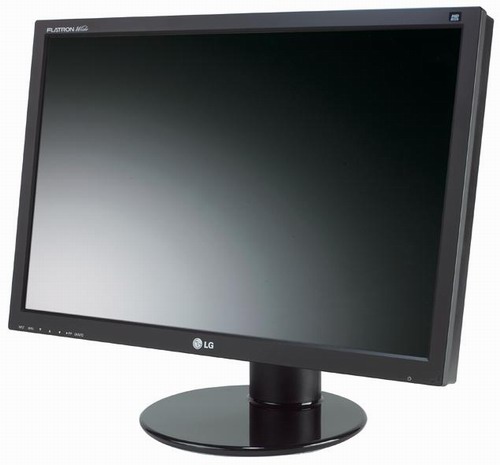
Another option you may want to consider is getting a wireless mouse and keyboard. Going wireless with these necessary pieces of equipment will help to pare down the cords beneath your computer desk.
These are some of the points to consider before buying a new computer. There are a ton of other options you need to consider when buying a new computer. I hope this little guide has been helpful to you for buying your new computer.
7:27 PM 0
3 Essential Ways to Increase Your Personal Computer’s Efficiency

Your computer must be one of the best gifts that you can refer to as your essential asset if you have lots of things (important tasks) that you are using it perform (things like calculation, browsing the internet, sending and receiving of files from the internet).
In this article are three essential ways and tips to use to increase your computer’s efficiency so as to prevent unforeseen circumstances that may occur to your computer system.
Don’t Multi-task your Computer
One of the greatest mistakes that commonly occur among large amount of computer users is when they start to believe that they can do all things on their computer at a particular time. They normally believes that since a computer is a machine that can process large amount of data at a given time without much hassle that it will be okay for them to get all what they want from such computer at once. Most of these peoples neglect to understand that a computer also works just the same way like a human being and other side like a machine. Computers do work like machine because it is but at some times, computer also tends to get tired of working well just like a normal human being will certainly be.
So what you are expected to do if you want your computer to continue working faster and helping you to do task easily is by making sure that you don’t do many things at a time on the computer so that you can make the computer to work better.
Always upgrade your Computer’s OS
If the current operating system that you are using on your computer is of a past generation, it would be great for you to change such an OS for your computer to stay up to date with the current information that supposes to be on the computer to get the perfect work of that computer (whether laptop or desktop).
If you are currently using say Windows 2003 or lower, you can upgrade it to Windows XP or later version if the computer’s capacity can occupy such load but if the computer can’t, then you can buy new computer or call the attention of an engineer to help you in upgrading the computer to a later version.
Use Good and Updated Protection Scheme
Preventing error or problems that might happen to your computer is better than trying to cure the wounds or damages that might later take place on your computer if you don’t prevent the incidence from happening at first instances.
Use good antivirus on your computer to make it to work better and top shield away any forms of virus attack on the system.
Using an outdated antivirus on your computer can not help you in any way too; you need to know that right from start. Make sure that you try as much as possible to get better protection scheme in place every time on your computer so as to prevent it from being vulnerable to attacks (both from the internet and the normal local computer attacks).
7:13 PM 0
Improve The Performance Of Your PC
- One of the first steps you should take is to empty the Recycle Bin. It’s easy to do. Just point your cursor to the Recycle Bin icon on your desktop, right-click and choose “Empty Recycle Bin.”
- Next, open up your browser and clear the history and cookies.
- Next, we will perform a Disk Cleanup. To do this, click on Start > All Programs > Accessories > System Tools > Disk Cleanup. The disk cleanup function will now begin calculating how much space you will be able to free up. Once it finishes, it will give you a list of files to delete. Click OK.
- Now it’s time to do a disk defragmentation. This can be a long process so you should probably set this up during the time when you have got other things to do. To begin go to Start > All Programs > Accessories > System Tools > Disk Defragmenter. Click Analyze. If you’re lucky, you’ll get the “You do not need to defragment this volume” call-out, but more likely, you’ll have to click on “Defragment.” If so, click on it, go do something else and come back in an hour or two.
- Once done, it’s time to run a spyware scan. Most people don’t realize how easy it is to get infected with spyware, so running periodic scans is highly recommended. You can use any anti-spyware program you choose. Just be aware that no one program gets rid of everything. To play it safe, you should run at least three different programs. You might be surprised by what they find. You may have spyware running on your computer and you are unaware of it. Once the scans are complete and all that spyware is taken care of, it’s time for the last step.
- The last step is to run an antivirus scan. Hopefully you have an antivirus program installed on your computer. If not, I highly recommend you get one as soon as possible. Once the anti-virus program is set, go ahead and run it. This could take anywhere from 20 minutes to a couple hours depending on how many files you have on your hard drive so once again, set it and then go do something else.
7:03 PM 0
Make Your Computer Faster !

This is a simple trick for those who are still using Windows XP. All you need to do is to make your computer more secure and restrict access by enabling the need for the administrator to log on for accessing the welcome screen also. How you go about doing this is by opening the control panel followed by administrative tools, followed by local security policy, and expand local policies, click on the security options and ensure that you enable the administrator status is enabled. By default this is disabled and is best to enable this.
Make your menus load faster:
You will love this tweak for this can make your computer load faster and is much more relaxing in a very urgent situation. This is how this tweak is done:
Go to START and choose RUN – Type ‘Regedit’ and then click ‘OK’ – Find “HKEY_CURRENT_USERControl PanelDesktop” – Select “MenuShowDelay” – Right click and select “Modify” – Reduce the number to around “100”.
What you are actually doing is delaying the time for the menu to load within 100 seconds, which is the optimal speed at which the user can use the system. This is possible to set this to zero, but that is too fast for even an expert user like you to use. After all, we are all human beings!
Disable CD/DVD or USB AutoRun:
This is one of the interesting tricks that will prevent form any virus getting into your system by disabling the Autorun of any removable drives like CD, DVD and Pen Drives. How do you go about getting this set on your system?
Click Start, Run and enter GPEDIT.MSC – Goto computer configuration and choose Administrative templates followed by system – locate the entry for turn autoplay off and double click on it – click on enable – choose all drives to disable all drives or only the CD ROM, through which only most of the time the virus comes. Apply and get ready to go!
Remove delete confirmation messages:
Having this message is both a good thing as well as a time consuming one, for the presence of this message gives you a second thought of having this file deleted or not especially when you are deleting very important files. Right click on the “recycle bin” on the desktop and then click on “properties” and choose to clear the “Display delete confirmation dialog” check box and click “ok”, however, you can always restore your file from the recycle bin.
Boot your computer faster:
Everyone should know this very important trick, as you will realize that how a slight change in your system could drastically speed up the work process. Press START to run and type MSCONFIG and press enter. Go to the start up tab to see a list of startup items, all of which will start up when you boot up your PC everytime. What you need to do is to uncheck all the unwanted programs like MS-office, messengers and restart the PC to find yourself awestruck.
Single Click Shutdown:
It is possible to rename several similar files at one go and this is how you do this, especially useful when you download the picture files from the camera. Open the My Picture folder, and choose all the files that you would like to rename, press CTRL and click on the files to select and right click to choose Rename, type the new name and press enter.
7:00 PM 0
Saturday
How to keep your System running Safe and Efficiently.
Hello, and Welcome to my own little Tutorial on how to keep your System running Safe and Efficiently. If you follow this guide from the Get-Go, then you should have little to no problems when it comes to Your own Security and the Effectiveness of your Machine. If your computer is running Horrendously slow, then I would suggest you wipe your Computer (Read Sec. #5), get a New version of Windows / Linux / Mac (or what-have you), and start from scratch. Keep in mind every Link provided here sends you to a Free Program site, and as a Hacker you need to get the Idea of "Paying" for anything OUT.
What will be discussed in this Tutorial:
1.) The Basics, and What Firewall should I use?
2.) Techniques when sorting through Potentially Dangerous links or Downloads.
3.) Well, I have a Firewall, and a Grasp of what to do and not do... How do I protect myself If I slip up, or get rid of whatever it is ailing my system?
4.) I don't want to take any chances. What do I do to check my computer for anything Malicious, and get rid of it?
5.) Fuck it. I'm starting over. What do I do?
Section 1 : The Basics, and What Firewall should I use?
So, you want to be a Hacker? Want to Dabble in the Dark Arts that has been Looked down upon since the Days of Dial-up? Well, just keep the following in mind: "No matter what, there is always something more Cleverer then yourself. - Merlin "
--Part 1--
If your going to Survive on the Internet, then you are going to need a Shield. This shield is referred to as a Firewall. There has always been a Debate on which firewalls one should use, and which ones suck. Point blank, the Top 3 are the following, and It is up to you to Decide which one you wish to use.
#1 - COMODO Firewall and Internet Security (*)
#2 - Outpost Firewall
#3 - Zone Alarm (*)
-These are Not listed in a Specific order, but I personally use COMODO Firewall. It is very Flexible, very easy to use, and for the most part is Hacker Friendly.
-Outpost has its own + and -'s about it, It's a little more Paranoid then COMODO, but still delivers outstanding Protection.
-Zone Alarm is probably the most annoying, as it will fret at the mere languish of the Word "Hack". However, it is very useful for Constant protection, and is Updated evenly (Just as the Others).
The purpose of a Firewall is to make sure that no Malicious programs are Downloaded onto your system without you knowing about it or approving it, and can even restrict access to certain connections going to/from your Computer.
Surfing the web without a Firewall is like screwing a 45 year old hooker; Don't take the chance, use Protection.
This shouldn't really be in this TuT, but I thought I'd add it just to make sure.
Most (I'm pretty sure all, but still) Operating Systems come with a "De-fragmentation" application, and will allow your computer to automatically take strung out files and compress them, giving your System more memory and the Ability to perform tasks easier, for Longer, and quicker. Defrag weekly, and restart your computer after doing so.
After you have chosen yourself a Firewall, check out Sec. #2.
(If you are -Just- Re-formatting, please skip to Section 3. Failure to do such can put your system at Risk! If this is not the case, continue.)
--
Section 2 : Techniques when sorting through Potentially Dangerous links or Downloads.
--
Alright! You have your Firewall. Time to go Download some music and chill to re-live your success of achieving the Impossible; Internet Security! ...right?
No. You fail. You have a Wooden Shield, and I have Fiery Armor, and the biggest fucking Sword you've ever seen.... Also, of course, on fire.
You would lose. I promise.
Let's say your searching the Hackforums one day, and you come across a Thread providing Links to a Free Program that would otherwise be unattainable, or very difficult to crack. Well look at that.. They gave you a Link to the Program to Download. Noone else of course has seen the thread, and you are the first person to come across it, so there is not Guarantee as to the Authenticity of it. How do you tell if it is Malicious?
Easy. Get something that can scan the File(s), and give you an Accurate report on if it is Dangerous or not.
Lots of Hackers (Geeks too) use online scanners, rather then download anything that looks touchy. I've been guilty of this from time to time, but I'd rather be able to use a Program before a Website. Mainly because I am lazy, and I don't feel like opening another tab.
If you are this way, and want to use something easily, then I recommend to you Dr. Web LinkChecker (*). All you have to do is Right-Click the Link before you download it, move your Cursor to the Dr. Web option, and Left-Click. It will automatically search the file for anything Malicious, and report back to you.
There are some other ways to tell if your being Joked around with. For example, you want to Download a Song from a Specific Link, but the link is only 345KB in Size. Common sense should tell you; Any song, Compressed or not, that is about 4-5 minutes long is usually about 4-5 MB in size. 1 MB = 1024 KB. So, 345 KB = 1/3 Of 1 MB. That is Screaming Fail and Anguish. Use common sense and download Dr. Web (or use an Online scanner) and scan the File.
Keep in mind, Hackers will make there own files "FUD", which stands for Fully Undetectable, so caution is stressed when downloading anything from anyone. I implore you to do research on whatever song it is, whatever program, whatever it is, and see if there is a Safe + Legal Alternative to such. Google is your Friend.
Mainly all I can stress to you is only download files from a Trusted Provider or Source. I would trust someone here on the Hackforums with more Reputation and Publicity then someone with none, and I would trust a Moderator with even more, because they seem to be Trustable sources. But by all means, do NOT ever give anyone your Complete and Full trust. Whether on the Computer, or not.
Also. If you are using Limewire, Mp3 Rocket, Frostwire, or Bearshare... Just, Fuck, Go ahead and Reformat. Your hopeless. Don't ask why, just trust me.
Section 3 : Well, I have a Firewall, and a Grasp of what to do and not do... How do I protect myself If I slip up, or get rid of whatever it is ailing my system?
Your next step is going to be getting an Anti-Virus program.
There are literally hundreds of AV's out there, hell I'm actually in the Middle of Programming my own... but which one is the best?
Honestly, there is no *Best* one, and I refuse to Argue the fact. Not all Antiviruses are as Awesome or Horrible as their competitors, but I have the Top 3 that most Hackers here, on the HF, use or can at least give credit to.
#1- Avira AntiVir Personal
#2- Avast! Free / Pro
#3- Kaspersky
All of these have their ups and downs. If you want Medium Protection, get Avast. Avira is, and will remain, my personal favorite because of it's User-Friendly Interface and Flexibility. Its also really keen on getting those otherwise difficult to get Files and Folders. Kaspersky is a basic one, is free, and also has a Nice Interface. It is your own choice.
Remember, having a Strong and Reliable Firewall and AntiVirus is crucial for anyone, not just Hackers. Choose Carefully, and do your own individual research on each one before downloading.
Be sure to do Daily scans on your computer with your Anti-Virus. All three of these all have built in scanners, with customizable times as to when it will scan.
Section 4 : I don't want to take any chances. What do I do to check my computer for anything Malicious, and get rid of it?
I could give you a List of what to use and sort through for this, but I will be plain and Blunt; Spybot : Search and Destroy (*).
This is hands down the best and most useful S
pyware Scanner / Detection Program, and can get rid of Malicious Files with the click of a button. I implore you to use this, along with your Firewall and Antivirus, to give yourself the best sense of Security available. Combining this with Defragging can really make an Improvement on your System, and is more or less referred to as weekly "Maintenance" for your Computer.
Be sure to not let your Computer run when you are not home. Not only does it waste power, but your computer staying Idle for long periods of time can Burn Virtual memory, and that isn't good. Restart your Computer after every Virus scan and Defrag.
Section 5 : Fuck it. I'm starting over. What do I do?
If you have done everything above, but still your Computer acts Weird and Slow, then I recommend starting over. It's pretty simple, and I have just the Program for you.
Use DBAN : Boot and Nuke (*). Hence the name, you insert it into the Computers CDROM Drive, restart your Computer, and Get rid of Everything on the Drive.
Doing such will wipe your Computer Entirely CLEAN. Meaning, NOTHING. If you have any files, photos, etc. that is of value, by yourself a Flash-Drive and put it on the Drive. Make sure you scan the files, as putting the Virus that caused you to have to resort to such on a brand new computer is just... Stupid.
This program is very simple to use, as stated above. Put it in, Wham-Bam. Please, however, make sure you have another OS ready on a Seperate CDROM. Once you wipe the computer, everything is 100% Unrecoverable, and you will be unable to use the computer for anything until you reinstall a new Operating System. Which one you choose is at your own Discretion.
Note: This tutorial is not written by me. I copied this from somewhere else by his permission.
12:36 PM 0
Secure Your System || PC Security Tips
This guide will be looking at the scanning of malicious files, as well as a guide to anti-viruses & firewalls and a brief introduction to sandboxing and anonymity. So yep, you're in for quite a bit of reading. Grab a drink, maybe a cigarette.
Being secure is important. Just because you call yourself a hacker, it doesn't mean you're immune to attacks towards your computer. Without my anti-virus, I doubt I'd actually be typing this now - I'd probably be searching through my registries and screaming like a chicken on speed. I'm like that.
Not all anti-viruses work the same way. Some anti-virus programs are bad; some are good, and some are just plain useless. We'll be looking at which ones are the best of the best, and which ones are just plain fail.
Being infected with something can also put your friends and family at risk, other users of your computer could be having their login & credit card details stolen without any knowledge of it. Worms can also spread to your email contacts and friends on popular websites such as Facebook.
Downloads & Scanning
For example, you download a program and the poster is claiming that it is a clean botnet controller. If we can this, it will come up with results such as "Win32/RBot" etc.. This means that the file should be what we wanted.
Now, if the botnet-controller scan came up as something like "Win32/trojan.agent.a", we can tell that this is a malicious program that will work against us. This is an example of a download you do not want to use.
All in all, the scan should show results similar to what you were downloading.
You should always be careful what you download. You may often be downloading malicious software without even realizing sometimes. Trust me, this happens to a lot more people than you think.
If you're expecting a file to be much bigger than the download you find, don't touch it. An example of this would be "Windows XP Theme - 350kb!" when it should be a lot higher, such as 30-50mb.
Remember to always check the names of the files you download.. If you're downloading a cracked program, it would be unusual for it to have no credits or advertisements in it. I would trust " 'x' cracked by 'y' " more than I'd trust " 'x' crack". Credits, names or advertisements should nearly always be in .rar or .zip files, this is one good way of recognizing a trusted download.
Here is a quote from Wikipedia which you may find helpful: "Example: ZTreeWin_1.5.zip contains a crack to register ZtreeWin 1.51 included files are: keygen.exe, one.nfo, file_id.diz and 'RUN.EXE'. It is the 'RUN.EXE' that contains the rogue program"
Downloading really isn't necessary and is often risky, but we have some clean content in the HF-L33t section if you want to upgrade for that. ;)
Online File Scanners
Web-scanners such as "VirusTotal" and "NoVirusThanks" are becoming increasingly popular with the amount of anonymous downloads posted all over the internet.
If you want to scan a file you find suspicious, you can go to either http://virustotal.com or http://novirusthanks.org to do so.
VirusTotal will send samples of the file to the antivirus companies, so this is not recommended if you want to keep your file undetectable.
NoVirusThanks has an "Advanced options" area where you can choose to not distribute your file to the antivirus companies, this is handy for keeping things fully undetectable, but if it's a file you don't trust and don't want yourself or others to be infected by it in the future, I suggest you allow them to distribute it to the antivirus companies. I respect what these websites and the malware fighting websites do, and so should you.
Visiting Websites & Reading Emails.
Be cautious of the websites you visit. I wouldn't recommend visiting any websites that seem cheap, uncommon, or freely hosted. Malicious websites are often misleading or can just inject things into your system without your consent. If you use the "Chrome" browser from Google, you may have noticed that it automatically downloads files without prompting you. Chrome is a browser I would not recommend just because it is so new, all new things have vulnerabilities, and if a vulnerability can be exploited, it will be exploited.
I'm behind a firewall and anti-virus anyway, but the only websites I visit are popular ones. The untrustworthy and uncommon websites usually don't appeal to me, for obvious reasons..
When opening emails, you should also be cautious. Just because it's an email from your friend - it doesn't mean you can trust it! You may see some emails asking you to update your bank details -- your banks should never ask you to do that via email. The details you enter will be sent out to someone who is going to exploit your details, so steer away from these emails.
Worms can be spread via email. For example, you open an email from Bob containing a worm, this worm is then sent to all of your contacts. This is how most worms will work, and it is suggested that you change your emailing service if it could be vulnerable. You can use Microsoft's live hotmail service which is excellent, it will also disable any harmful content from downloading onto your computer. You can find this service at http://mail.live.com
Sandboxing
By using a sandbox, everything that is downloaded onto your computer will remain in the sandbox. It will not escape, meaning that malicious downloads cannot harm your computer. Sandboxing is a great way to test whether or not a website can be trusted. I rarely do this, but it's so useful sometimes.
Sandboxing will also protect your cookies, history and cached temporary files from being leaked. Downloads are isolated, meaning that they are trapped and your computer is protected.
Firewalls
The good antiviruses will have a built-in Firewall, but if not, then it may be worth downloading one. Firewalls aren't essential, but can help a lot.
Some firewalls have IP masking options, but these can usually slow down your computer and are not worth using unless you're doing something illegal.
The main use of a firewall is to prevent incoming traffic, which will stop things like 'telnet' from reaching your connection, and can also stop worms etc. from accessing your network. Firewalls will also block the backdoors that trojans create, so if you find yourself unlucky enough to have a RAT (Remote Access Trojan) on your computer, the backdoor should be blocked by your firewall, but it is possible for a trojan to bypass this. Having a firewall does not mean you are secure, many firewalls can be easily disabled or bypassed by malware. Some firewalls will also block legit connections, such as downloads for software. Do not think you're secure just because you have a firewall, this is a common misconception with firewalls. Too many people think that by installing a highly popular firewall, they'll instantly be secure against the latest intrusions, but this is not at all true.
Firewalls may also make an effect on your connection speed. If you have a very fast download speed, you may notice a difference when you get a firewall, but the download speed may remain normal on users with slower speeds. This effect can vary between users, and depends on the connection. It's best to try several firewalls to find out which one suits you best - reviews are personal and will not always be the same for everyone.
One of the favourite firewalls is "ZoneAlarm" which is very popular and has a free version. The paid version is obviously better, but it isn't necessary at all.
If you're using Windows Vista, I'd recommend choosing ZoneAlarm as your firewall. The same goes for XP, but you might want to get your hands on a "BlackIce" crack instead, if possible.
Another great Firewall is "Comodo" which is also free can be found here...
Comodo: http://www.personalfirewall.comodo.com/
Zone Alarm: http://www.zonealarm.com/store/content/c...wall_b.jsp
Ghost: http://www.ghostsecurity.com/ghostwall/
Antiviruses
An anti-virus program is essential. You honestly shouldn't go without one. If you don't have one, there is a list of downloads and recommendations in the next post. Don't be worried about the anti-virus slowing down your computer, if you get the right one then your computer will remain at maximum performance.
You want an antivirus that will scan your RAM and system folders constantly, because then you will be alerted if something harmful has been found in them. The average antivirus will only scan and remove when told to, but the best ones will scan constantly, update daily, and give plenty of tweaking options to fit to your preferences.
If there are malicious programs that you want to download such as Metasploit, it is best if you have an antivirus that will allow you to do so. Some antivirus programs will give you no option and will quarantine the file straight away, but others such as Kaspersky will give you the option to clean, remove or ignore.
Viruses can sometimes fully disable your protection, but the stronger programs such as Nod32 can withstand this and will be unclosable. You want something tough if you're going to be downloading riskware.
A good anti-virus will also constantly scan your downloads and running processes. Hopefully you are able to understand now why these are essential.
If you want to run more than one antivirus, you must find a combination that works. If you have a good antivirus, you won't need to. Infact, you shouldn't ever need to run more than one. I remember having Kaspersky running while I installed Nod32, my PC growled. :3 The only antivirus-related programs I have installed at the moment are HijackThis, ComboFix and NOD32. I like to use HijackThis to see what's running on my computer, and I always keep ComboFix just incase, you never know what's round the corner...
I remember having no antivirus software installed whatsoever, and then I received a rootkit that wouldn't let me download any software.. I got rid of them eventually, but it wasn't easy, the rootkit wasn't detected by most AV's because of it being so new/rare - you still can't find it on a few of the AV databases! But I do wish I had it again, so I could send it out as a sample.
I will be listing my favourite anti-viruses in my next post. I strongly recommend you stick to these, as there are many fake ones that you can be easily lead to. Remember to look things up before downloading them. Pick wisely! :3
The Top 5 Anti-virus Programs.
Here's the list of my top five favourite anti-virus programs in order.
You can pick which you want from each picture, but I'd recommend Kaspersky.
Kaspersky:
Nod32:
Avast:
Bitdefender:
AVG:
Essential Additions.
There's a few more tools which I'm sure you'll definetely want to get.
HijackThis is a tool used to scan the areas of your computer which viruses are often located in. It will also scan the registry areas which hold the legitimate programs and, quite often, the infections. It is best not to delete ('fix checked') any entries on HijackThis unless you know what you're doing, as you may be removing something which is a required part of your system.
Another good thing about HijackThis is the fact that it's so lightweight, it uses barely any memory, it's easy to use, and you don't need to keep it running!
This is a great area to check if a process is harmful or not: http://www.bleepingcomputer.com/startups/
HijackThis can be found here: http://www.trendsecure.com/portal/en-US/...hijackthis
Browser Protection
There are several great addons for browsers which you can get to protect you from malicious websites.
If you use FireFox, look for "WOT" and "NoScript", WOT will give warnings before you visit a website, and NoScript will disable malicious scripts from running when you visit a website.
If you use Internet Explorer, look for "IE-Spyad", IE-Spyad will redirect you away from malicious webpages and guard you from over 5,000 different URL's.
I'm also working on my own plugin, which you can expect to see in a few months. This will be for IE only, until I fully figure out how FireFox operates.
Okay, now that you're protected (well, I hope you are), it's time to be invisible...
IP Hiders
You can get some great IP hiders to keep you anonymous.
A personal favourite is "Hide-The-IP", which allows you to select the proxy and choose the speed of the one you want.
Hide-The-IP can be found here: http://www.hide-the-ip.com/ - Though you may need to find a crack for it!
There are many fabulous IP hiders out there which can be found, and these are a must if you're going to be involved in any illegal activity.
Tor: Anonymity Online
You may want to download "Tor" and TorButton for FireFox. This is a program which will select a proxy for you and allow you to spoof your connection by using that.
TorButton is a FireFox addon which allows you to change your proxy quickly by clicking the button. This is a great tool, and another good reason to download FireFox!
The whole Tor website with information & downloads can be found here: http://www.torproject.org/
Alright, grab another cup o' coffee, 'cause we've still got more to do..
Personal Details
Okay, you may want to give out your name and things on your Facebook or MySpace, but if you do, it's wise to use an alternate alias. If someone searched your hacking alias in Google, they'd probably be able to pick up a lot of information on you from that. Think about the name you choose before you choose it, and make sure you don't over-use it - only use it where you think you should. Don't complain about not being anonymous if you're going to splurt out your details everywhere, you can't expect to stay hidden if you're going to give yourself away without realising. Remember that.
Keeping Software Updated
Software should always be kept updated. This is vital. Most security experts will tell you that updating your software is more important than having an antivirus, because malware finds flaws and vulnerabilities in software that it can exploit.
This is what should always be kept fully up to date:
Your operating system (e.g. updating from Windows XP SP1 to SP2).
Java.
Browser.
Antivirus.
Firewall.
Instant messaging or email applications.
Any other software which could be exploited.
Zer0man showed me this lovely website with scanners you can use to check for out-of-date software...
Here's the online version: http://secunia.com/vulnerability_scanning/online/
And the downloadable version: http://secunia.com/vulnerability_scanning/personal/
Quite obviously, the downloadable version scans for more vulnerabilities than the online version, and it includes more features. This is a great tool to use every few weeks, since you never know what's around the corner ;-)
Active Thinking
Many scams and computer infections require your consent, so you should always be wary. If something doesn't quite look right, make sure to research it. Many people are fooled into giving away their details by fake emails from companies such as banks, social networking websites, etc. You shouldn't believe everything you read. Many scams will lead you on, so you just have to watch out. Keep everything you've learned from this guide in mind, and you'll be safe.
A good quote from The Real Hustle: "If it looks too good to be true, then it probably is".
Passwords
Though it is also important to have a password you will remember, you should also be sure that it can't be guessed. If it's a site containing personal information, I suggest you change your password once a month. A good password would contain letters, numbers and symbols - maybe even words in a foreign language if it helps! An example of a good password would be "A$fao4iz3£p" not "John1982" or "ilovefootball". Passwords should be different for each website you use, because if someone hacked into a forum, for example, and took your details - potentially, they could have access to your PayPal account, Facebook, etc.
Well, you should know just about everything you need to know by now. If there's anything else you're wondering, don't hesitate to ask! I will be here for any questions, feedback or suggestions. This guide should keep you well-hidden and protected from now on, just remember to keep everything in mind!
12:24 PM 0
Friday
How to Hide Folder in Windows

Free Hide Folder is fairly easy to use. Upon install, you can hide folders simply with a few mouse clicks. Firstly, run Free Hide Folder. Then, browse and select the folder you want to hide, and click “Hide Folder button” to hide folders. A password is required in order to run Free Hide Folder. Therefore, 1 more layer is added to shield your folder.
Download Free Hide Folder (743Kb)
11:07 PM 1
Monday
Download Gmail Notifier Pro

 Counter of unread emails Counter of unread emails | ||||
| Sound and tray icon alerts | ||||
| Read email headers and body | ||||
| Delete emails or mark as read | ||||
| IMAP connectivity over SSL | ||||
| Fast and easy Gmail login | ||||
| Support for multiple accounts | ||||
| Support for UTF-8 emails | ||||
| Support for mailto links | ||||
| Support for Google Apps | ||||
| Attachment indicator | ||||
| 100% spy and spam free | ||||
| Auto version updates | ||||
| Make window topmost | ||||
| Run at startup |
8:49 PM 0
Sunday
Free Keys for all Softwares
 Hi friends, Welcome to trickszone4us.blogspot.com . Today I am very exited to tell about a search engine which will find KEYs for you software. It can also provide you Key for Operating System. This is really amazing. Now you don't have remember so much web address where you can find the cracks for your software. Just go to the site youserials.com and enter the name of your software and you will see the key or location of your desired key. Now simply copy or download that key and enjoy the full version of your software.
 Do follow my blog for really cool tricks and tips. you are watching this post on www.trickszone4us.blogspot.com
Enjoy!
2:21 PM 0
Saturday
Make your Computer Faster! 6 easy step to improve your PC performance
 |
- Remove temporary Internet files.
- Delete downloaded program files, such as Microsoft ActiveX controls and Java applets.
- Empty the Recycle Bin.
- Remove Windows temporary files, such as error reports.
- Delete optional Windows components that you don't use.
- Delete installed programs that you no longer use.
- Remove unused restore points and shadow copies from System Restore
In addition to running Disk Defragmenter at regular intervals (weekly is optimal), there are other times you should run it, too, such as when:
- You add a large number of files.
- Your free disk space totals 15 percent or less.
- You install new programs or a new version of the Windows operating system.
- Find out if your computer can run Windows 7 using the Upgrade Advisor.
- Compare Window 7 editions.
- Read a third-party review of Windows 7 by David Pogue of The New York Times.
10:20 AM 0


